
Working anomalies
What the rules check, how to read the AI explanation, and acknowledging vs resolving.
AdminOperator
Updated 2026-06-04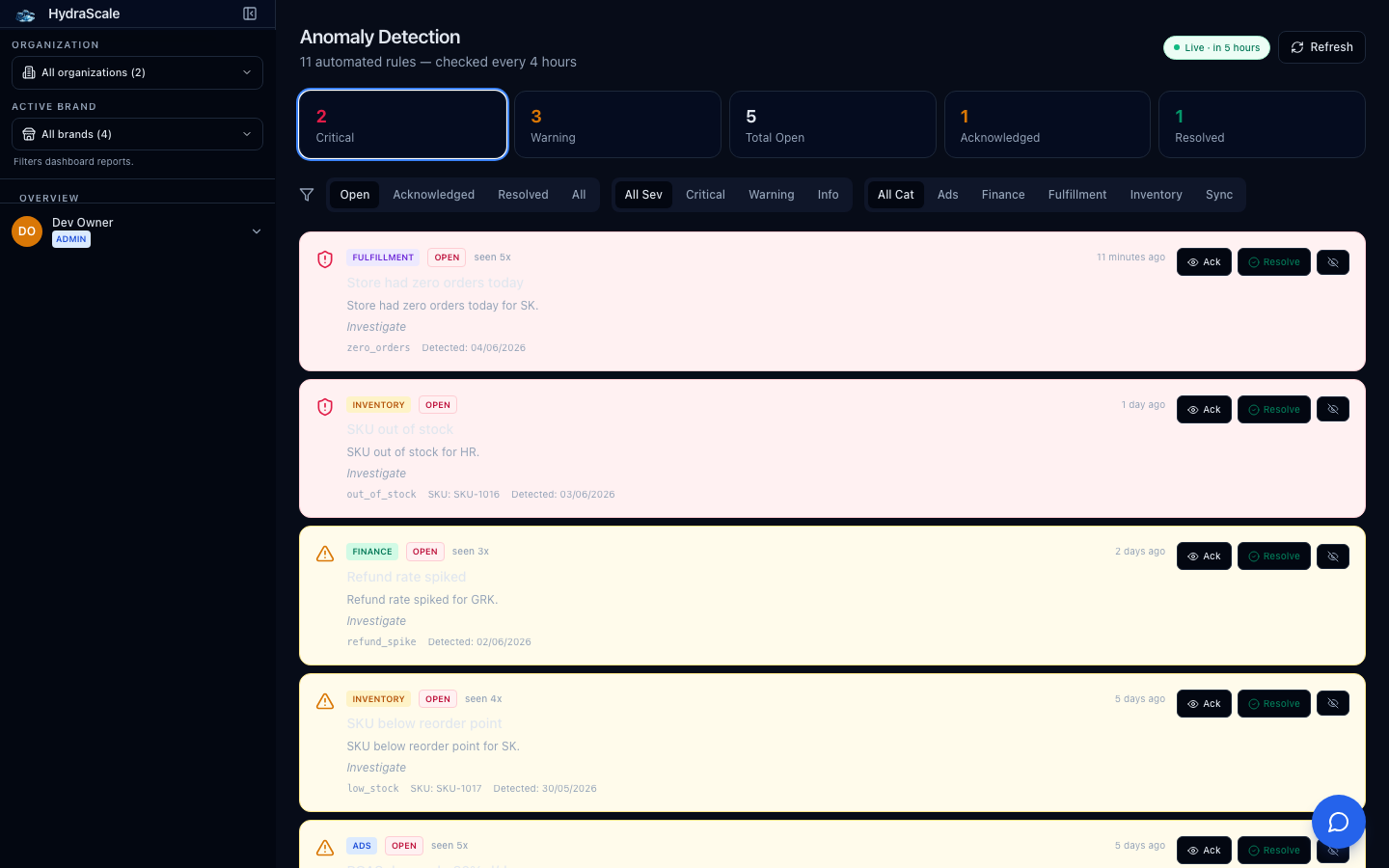
The things you'd miss find you
A set of rules runs every four hours across refunds, stock, ad spend, and sync freshness. When a rule trips, HydraScale writes a one-paragraph, AI-authored explanation of the likely cause so you can triage without digging. The headline counters — Total Open, Critical, Warning — tell you how loud today is.
Triage actions on each anomaly
- Acknowledge — "I see this, will handle it"
- Marks it as seen without closing it, so the open count stays honest while you investigate. Available to operators and admins.
- Dismiss — "not relevant"
- Clears a false positive or an anomaly that doesn't apply to your business, so it stops cluttering the queue.
- Resolve — "this is fixed"Admin
- Closes an anomaly once the underlying issue is handled. Admins resolve; operators read, acknowledge and dismiss.
Filters
- Status (Open / Acknowledged / Resolved)
- Switch between the live work, what's been seen, and the closed history.
- Severity (Critical / Warning)
- Focus on Critical first — those are the ones the dashboard Alerts panel surfaces too.